Generally, users are not able to enter input in VS Code, and it shows the message “Cannot edit in read-only editor.” To fix this issue in VS Code, you need to follow the process below so that you can properly take input from the user.
So, first, you have to create a .java file and write the syntax for your Java code.
For Example I have created a Calculator class and now we want user to input the First Number.
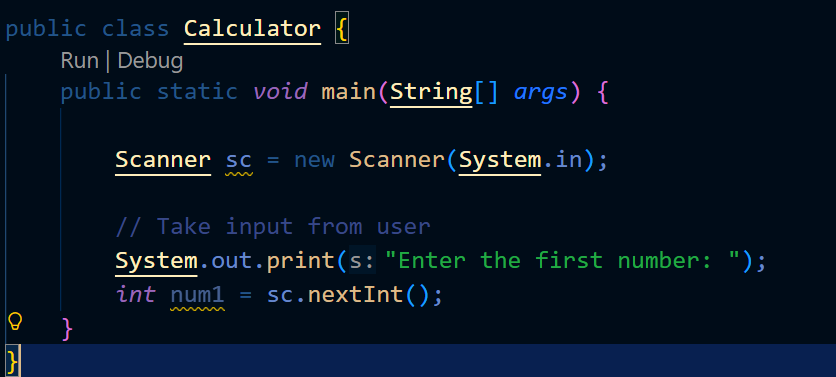
- Once you run the code, it shows the message “Cannot edit in read-only editor mode.”
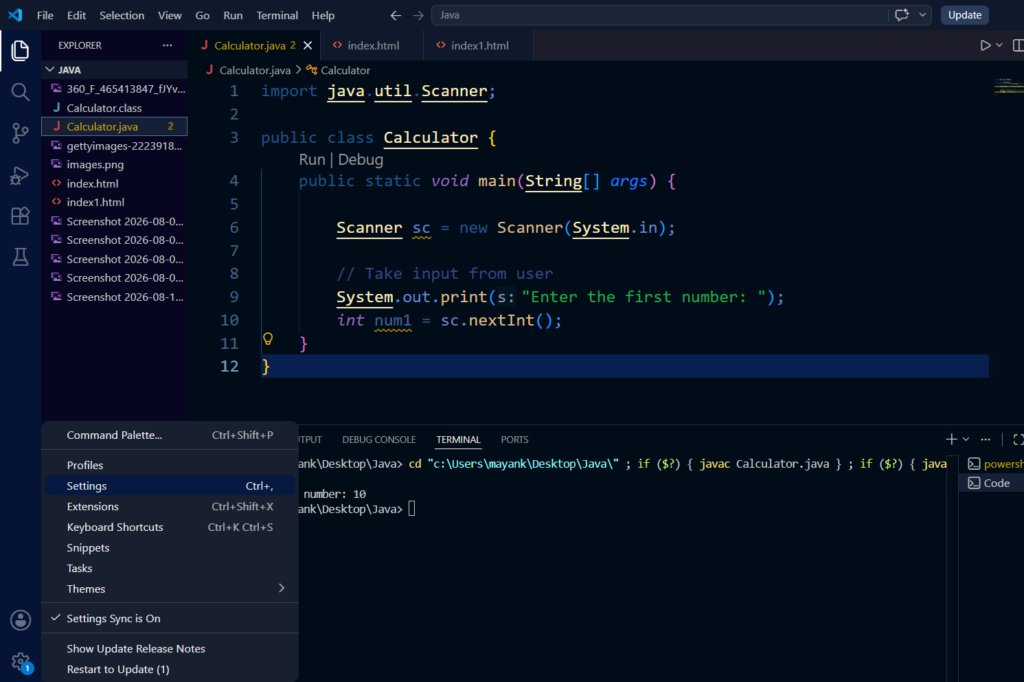
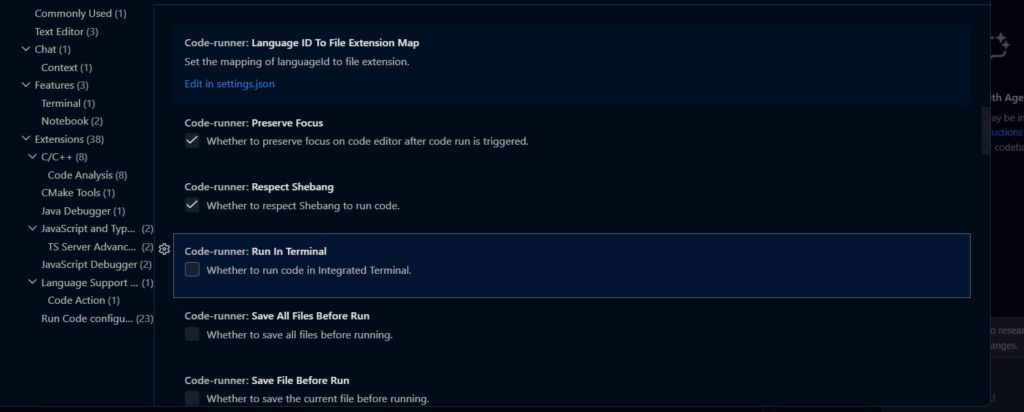
To fix this issue, open Settings on the left side and type “Run Code” in the search bar. You will see an option called Code Runner: Run In Terminal. If this option is unchecked, make sure to check it.
After enabling this option, close and reopen VS Code to apply the changes properly. Then, open your Java file and run the code again. The program should now run in the terminal, allowing you to enter input from the user without getting the “Cannot edit in read-only editor” error.
Make sure you enter the input in the Terminal rather than directly in the output window. This will allow your Java program to accept user input properly

Once you have followed all these steps, you will be able to easily fix the issue.